Idle
0 px
Actual DPI
—
Pixels moved
—
Deviation
—
DPI ANALYZER
Our mouse dpi analyzer estimates your mouse sensitivity by comparing measured physical movement with on-screen cursor movement.
Whether you are a competitive FPS player, a graphic designer, or simply someone who wants to understand your mouse sensitivity, this tool helps you estimate your DPI through a physical movement test. No download. No account.
What is Mouse DPI?
DPI stands for “dots per inch”, which means the number of pixels per inch. It measures the sensitivity of the mouse. It determines how far your cursor moves relative to your physical mouse. DPI shows how the image or text appears.
A higher sensor resolution causes the cursor to move fast with minimal hand movement, while a lower DPI shows less movement with the same physical force. The mouse DPI analyzer tool allows you to calculate the real-time movement of your mouse. Different tasks require different DPI settings. Designers often prefer lower sensitivity, while gamers may use higher DPI values.
Mouse DPI measures the number of hardware-level positions generated by the CMOS sensor when the device physically travels a linear distance of exactly one inch of the surface. It represents the spatial resolution of the device’s optical tracking sensors. For example, when you are using the 800 DPI, the cursor is slower, which allows for more control.
DPI vs CPI
These two terms are used interchangeably, but they originate from very different fields and technically mean different things.
DPI
DPI is an imaging term that measures resolution, especially how many dots of ink a printer places per inch of paper or how many pixels a scanner captures per inch. The mouse industry uses this term because consumers were familiar with it otherwise. Although DPI originally comes from printing terminology, it has become the commonly used term for mouse sensitivity.
CPI
CPI refers to counts per inch, the actual unit used by the mouse sensor to measure how many “counts” or signal pulses it registers when it moves one inch. In gaming and computing, CPI determines the cursor sensitivity.
DPI vs Polling Rate
DPI measures the sensitivity of the mouse, while polling rate, on the other hand, is about speed and frequency. It measures how often the mouse reports its position to the computer and is expressed in Hertz (Hz). A standard mouse usually runs at 125Hz, which means it sends updates 125 times per second. In simple terms, DPI is “how far,” and Polling rate is “how often”.
Why Does DPI Matter?
Your mouse sensitivity is the main factor influencing your level of control. While an inflated DPI could result in an unstable and unruly cursor, a low pointer sensitivity could cause sluggishness and require a lot of mouse movements. Optimal sensor settings enable precise game targeting, sophisticated design software navigation, and effective daily task workflow.
What DPI Should I Use?
If you’re a gamer, you should experiment with different tracking resolutions according to your preferred gaming style. However, if you’re a creative designer, you should choose a higher DPI because it will make your work more efficient and fluid. Remember that there is no ideal sensor count rate; you should choose the one that suits you best for your workflow.

Best DPI for FPS Gaming
When it comes to FPS gaming, most players prefer a lower DPI ranging from 400-600, as it gives precise control over aim and is crucial in fast-paced shooters like Valorant, CS2, or Call of Duty, where accurate small movements matter the most.
Best DPI for MOBA and RTS
For MOBA and RTS games like League of Legends, Dota 2, or StarCraft 2, players generally prefer a high sensitivity ranging from 800-1600, since these games need a quicker cursor movement in the screen for precise aim. While maintaining a modest in-game sensitivity to ensure precise clicks on troops or spells, a higher mouse tracking precision allowed you to respond swiftly to skirmishes, ability casts, or map changes.
Best DPI for Graphic Design
Graphic designers often prefer a slower sensor resolution, typically between 400 and 800, which works best for designing in tools like Photoshop, Illustrator, and CAD software, giving the right control over cursor movement for smooth curves, aligning elements, or working with pixel-level detail.
Best DPI for Office Productivity
Office productivity tasks like browsing, spreadsheets, or general navigation require a moderate mouse tracking precision ranging from 800 to 1200. Most offices do not need to fine-tune sensor resolution as carefully as gamers do, so sticking with whatever feels comfortable and reduces wrist strain over long work hours matters more than chasing a specific number.
Best DPI for 4K Monitors
For 4K displays, an appropriate sensor resolution is necessary. This typically ranges from 1600 to 3200. The reason for this is that 4K screens contain a significantly higher number of pixels. Consequently, the cursor needs to move a greater distance compared to a standard 1080p monitor.
If you don’t adjust the sensor count rate on a 4K display, you may find yourself moving the mouse excessively. You might even need to lift it and reposition it just to reach the edge of the screen, which can be frustratingly slow.
What is a Mouse DPI Analyzer?
Mouse DPI analyzer is a tool that calculates the DPI (dots per inch) of the mouse. By inputting the resolution of your mouse, it determines the ratio of the mouse’s actual movement to the amount of movement that is magnified on the screen. It permits gamers, designers, and professionals to have the best control over cursor movement speed settings.
DPI Setting by Mouse Brand
“Ideal DPI” isn’t one number. It shifts depending on the brand’s sensor and software. Although the recommended DPI ranges are similar, each brand offers different sensors and software features.

Logitech
The G series (G Pro X Superlight, G502) runs HERO sensors up to 25,600 tracking resolution, though almost nobody plays at that ceiling. G HUB lets you fine-tune settings and save per-game profiles. Most competitive players stick to 400–1600 tracking resolution; the sensor stays accurate even higher if you genuinely want that.
Razer
DeathAdder V3 and Viper use Focus Pro sensors, maxing out at 30,000 DPI, although very few users require such high values, honestly. Razer Synapse handles stages and cross-device syncing, but most players still land in that same 400–1600 range.
SteelSeries
SteelSeries plays a different game entirely. Their TrueMove sensors nail tracking accuracy at low cursor movement which is why esports pros love them. Through SteelSeries GG, users dial in surface tuning and CPI calibration, then stay in the 400–800 range, leaning on tracking precision instead of raw speed.
Corsair
Sabre and Dark Core mice top out near 18,000 sensor count rate, run through iCUE (which also handles RGB and peripheral syncing). Reliable, no drama, most users settle around 800–1600 sensor resolution for a solid mix of speed and control.
Recommended Settings
The table below provides a quick overview of the recommended settings you should use for a better experience:
| Use Case | Recommended | Target FPS (in-game) |
|---|---|---|
| FPS gaming (CS: GO, Valorant) / MOBA (strategy gaming) | 400–800 | 200+ |
| General office use | 1000–1600 | 30–60 |
| 4K / multi-monitor output | 1600–3200+ | 60+ |
| Graphic designing / Editing | 600–1200 | Focused on precision |
How to Use the Mouse DPI Analyzer Tool
This analyzer tool helps you find the sensitivity of your mouse on the screen. Follow these steps to measure your mouse DPI accurately. The procedure involves measuring the target distance, recording the mouse movement, and analyzing the results.
-
1
Distance Measurement
- Measure the distance over which the mouse moved by marking lines on the mousepad or a sheet of paper.
- The measurement should match the mouse’s actual trip distance rather than the edge-to-edge breadth of the surface.
-
2
Input Parameters
- Enter the target distance for mouse movement and select the appropriate axis for the measurement.
- If the current tracking resolution setting is known, input the exact value.
- If the pointer sensitivity is unknown, enter the approximate value (800), as the calculated result will provide the actual sensor resolution.
-
3
Initiating the Measurement
- Click the red crosshair and hold down the mouse button.
- The recording will begin.
-
4
Performing the Mouse Movement
- Move the mouse as straight as possible across the marked point.
- The objective is to physically move the mouse the specified distance rather than aligning the red crosshair with the blue indicator (0% deviation).
-
5
Recording and Viewing Results
- Release the mouse button to stop the recording.
- The result will be displayed.
How We Tested Mouse DPI Accuracy
Our mouse dpi analyzer estimates real sensitivity by comparing physical mouse movement with on-screen cursor movement. To improve accuracy, measurements should be performed on a flat surface using a ruler or measuring tape. For best results, disable mouse acceleration and move the mouse in a straight line during testing.
Understanding eDPI
eDPI is just DPI times in-game sensitivity, and it’s what actually decides how fast your crosshair moves. Run 800 cursor sensitivity at 0.5 sensitivity or 1600 cursor sensitivity at 0.25, same 400 eDPI either way. So when someone shares their “DPI” without mentioning sensitivity, you’re not really getting useful info.
This matters more than raw tracking resolution when comparing setups across games. Most competitive players keep pointer sensitivity low, around 400–800, then tweak sensitivity per game to hit a consistent eDPI. Do that math yourself before copying anyone’s numbers.
How to Change Mouse DPI on Windows 10/11
You can improve your experience by adjusting the DPI of your mouse using built-in buttons or the manufacturer’s software. You can use a DPI analyzer tool for this purpose. Here are instructions for adjusting the mouse’s DPI in Windows 10/11.

Most gaming mice include dedicated DPI+ and DPI- buttons so you can increase or decrease DPI on the fly without opening any software — ideal for switching sensitivity mid-game or mid-task.
Using the DPI Button on the Mouse
You can change it by using the DPI button. Here are the steps to explain how it works:
- The DPI button on the mouse allows you to toggle between sensitivity settings without any software.
- Click your mouse in the top-left corner and drag the mouse to the left.
- Now, click the DPI button once to enter the sensitivity setting.
- No real-time DPI adjustments. Corsair Utility Engine (CUE) allows you to change DPI levels between 800 and 6400. For accurate clicking, use the SubLObjectPoint and DPI settings that work best for you.
Using Mouse Software (for gaming mice)
- For a branded gaming mouse like Logitech, SteelSeries, or Glorious, do as follows:
- Download and install your mouse driver (Logitech G HUB, SteelSeries Apex, or even Glorious PC Race).
- For example, with DPI Logitech mice, you can easily access the software to change the DPI.
- Open the app and select your mouse model.
- Go to the DPI setting.
- Adjust the DPI by sliding the slider until the DPI setting you want is selected (you choose from 800-1200).
- Update the profile and save the settings.
Via Windows Pointer Settings
- This method does not change your DPI but alters its settings.
- Press Win + I to open Settings.
- Go to Settings → Devices → Mouse.
- Choose “Additional mouse options” from the panel on the right.
- Go to the Pointer Options and set the speed slider.
- Disable “Enhance Pointer Precision” for more consistent cursor movement.
- Go to Apply and tap ok.
How to Change Mouse DPI on macOS
macOS cannot change DPI directly unless you have a high-end mouse that has its own software, and you can change its pointer settings. Two methods are discussed below to change the pointer sensitivity:
System Preferences
- Access the Apple menu and go to Mouse settings.
- You can adjust the cursor movement by adjusting the tracking speed.
- Adjust the tracking speed until it feels comfortable.
- Select mouse/trackpad.
- Slide the tracking slider left and right until it feels right.
Use Manufacturer Software
- Install your mouse software for macOS (Logitech G Hub for Mac and MX Master).
- Open the app and go to the DPI settings.
- Create a custom DPI and save the profile.
- Navigate to DPI or performance.
- Choose your mouse model.
- Certain tools function as DPI rises, enabling you to increase sensitivity for large monitors or high-resolution activities.
Key Features of the mouse dpi analyzer
Learn about the powerful features of our mouse DPI analyzer. This section highlights the key tools we’ve developed to help you measure and optimize your hardware. Check out the key features below to see how to verify your sensor speed, track your actual sensitivity, and more.
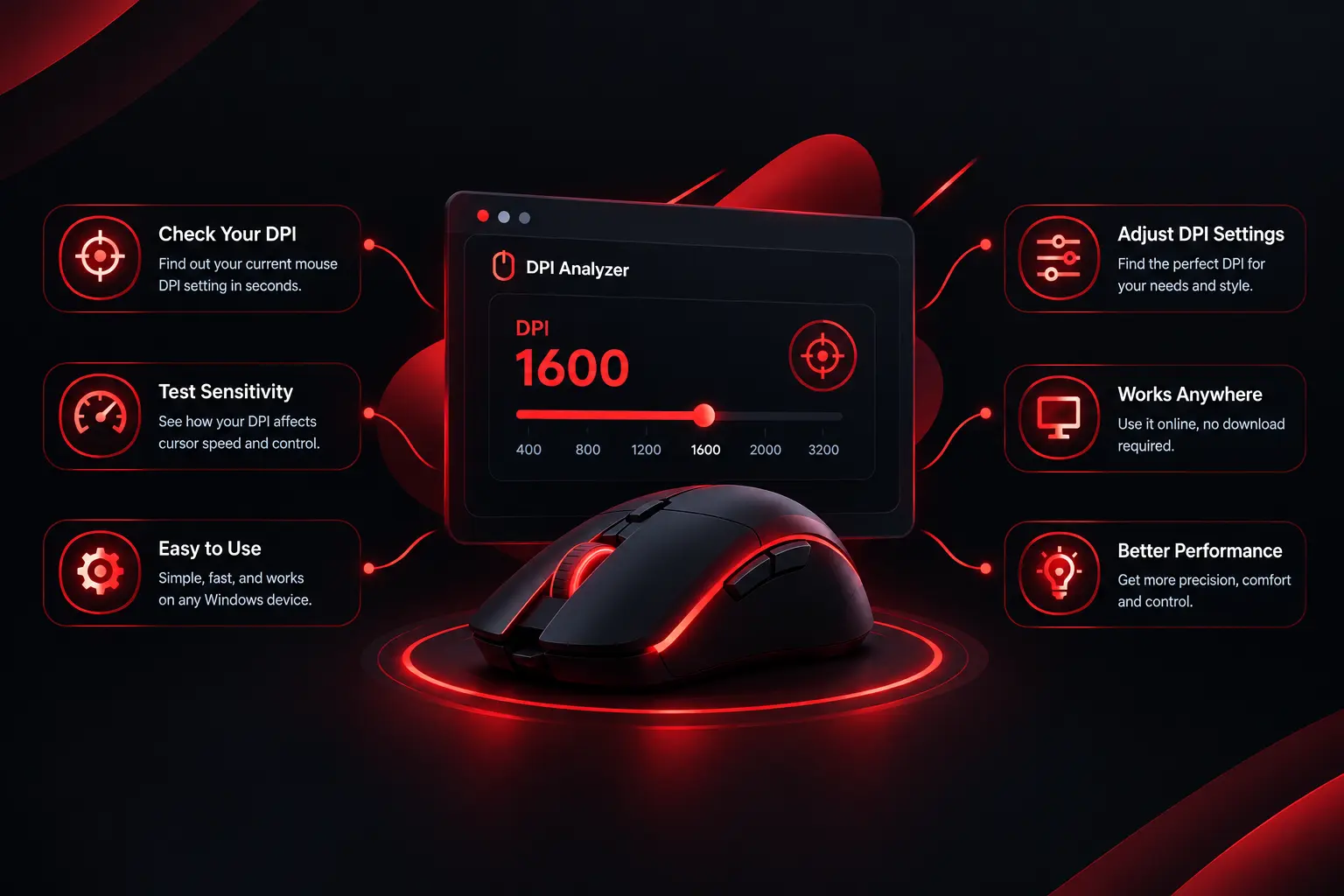
100% Free and Instant
You can use our tool for free. You don’t even need to use email to log in. You are allowed to use this tool for DPI testing as often as you like.
No Download or Setup Required
There’s no need to download anything, and no additional drivers are required because it’s a web-based program. Without having to install or configure anything, you can test mouse DPI on Windows, macOS, Linux, Fedora, and even Chromebooks.
Works on All Devices and Browsers
You should use a desktop computer, laptop, or tablet — all are compatible. Since all common browsers — including Chrome, Firefox, Mozilla, Safari, and Edge — are supported, performance will not be affected by the device or operating system you use.
Understanding Mouse DPI vs In-Game Sensitivity
By looking at mouse DPI, you can see how far the pointer moves on the screen in response to one inch on the mouse pad. The sensitivity is specific to a single game’s in-game adjustments. These two figures are combined to create effective DPI, or eDPI, which helps with in-game performance calibration. Whether you’re testing a gaming setup or simply adjusting the DPI of your PC mouse, this application ensures accuracy across a range of tasks.
Accurate Measurement
Provides reliable DPI estimation for gaming, design, and productivity tasks. This function is helpful for experts, designers, and gamers who need precise and stable cursor movement.
Why Use Our mouse dpi analyzer?
There is no software to install, no account to create, and no data collected. Every calculation happens locally on your device. Your results are private and instant.
About Our Testing and Research
Our content is created and reviewed using information from mouse manufacturers, gaming hardware documentation, and practical testing methods used by gamers and professionals. We continuously update our guides to reflect current mouse technology, sensor developments, and industry best practices.
Last Updated: June 2026
References
The information presented in this guide is based on official documentation, manufacturer resources, and industry-standard practices for sensitivity and cursor performance.
Sources Used:
- Logitech G HUB Documentation
- Razer Synapse Support and User Guides
- SteelSeries GG Software Documentation
- Corsair iCUE Documentation
- Microsoft Windows Mouse Settings Documentation
- Apple macOS Mouse and Trackpad Settings Documentation
- PixArt Sensor Specifications
- Gaming hardware recommendations and testing practices used by professional players and enthusiasts
- Manufacturer specifications for Logitech, Razer, SteelSeries, and Corsair gaming mice
These sources were reviewed to help ensure accurate information regarding DPI, CPI, polling rate, mouse acceleration, and sensitivity settings.
Frequently Asked Questions
This section provides comprehensive explanations and practical guidance to help users better understand mouse DPI measurement and related settings. It addresses common issues with accuracy, sensitivity, calibration, and performance improvements.
How does a DPI analyzer measure my mouse’s settings? +
How does tracking speed differ from DPI as a metric? +
What’s the technical distinction between pointer precision and sensor resolution? +
How does mouse acceleration interfere with DPI measurement? +
Does polling rate influence the analyzer’s DPI output? +
How to find mouse DPI? +
How to increase the sensitivity of a mouse? +
Reviewed by the Mouse DPI Analyzer Editorial Team
We research mouse sensitivity, gaming peripherals, polling rates, and cursor accuracy to help users better understand and optimize mouse performance.